Enhances the site with instant previews, visual markers for favorites, a reading queue, tag tools, smart navigation, and more.
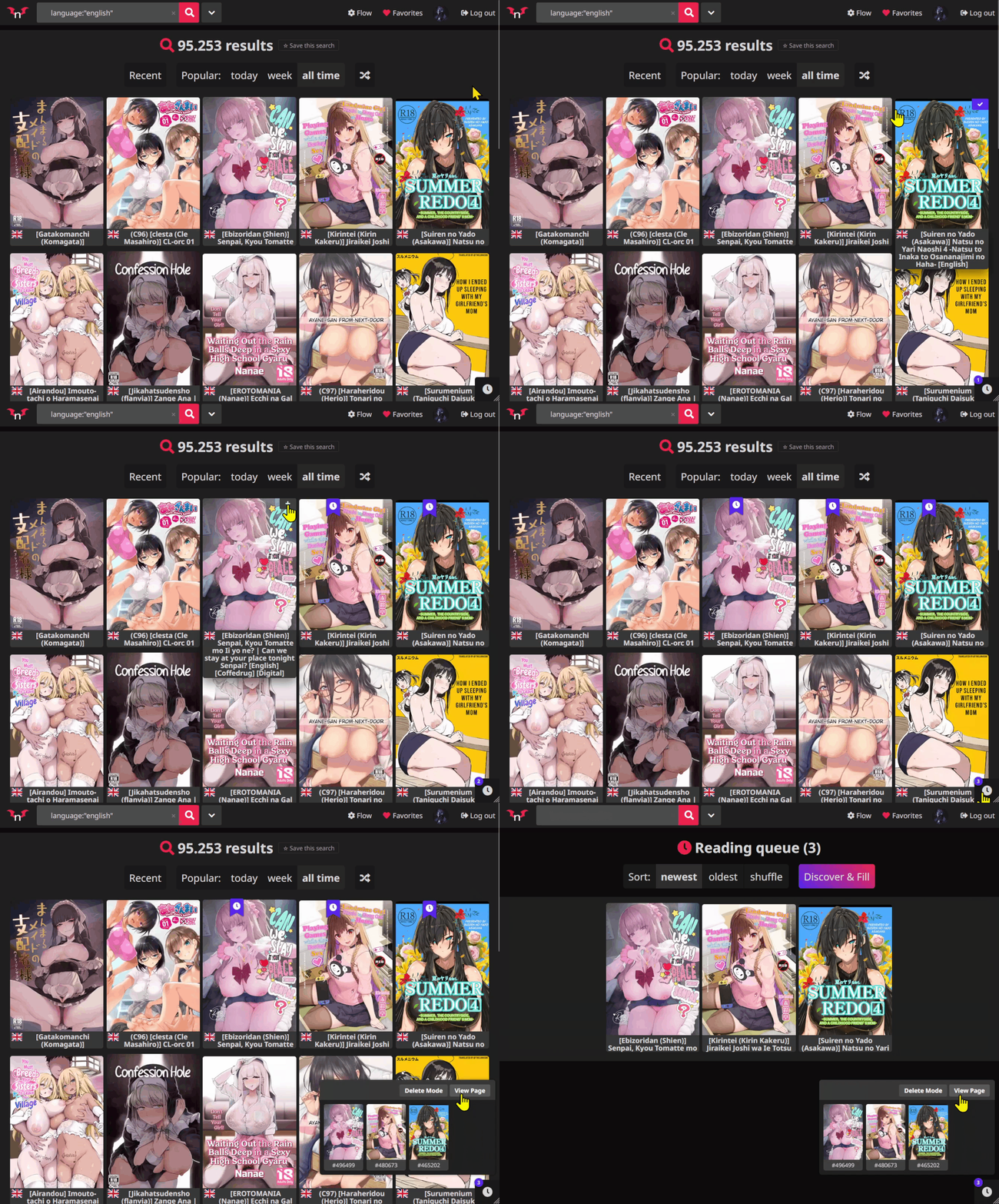
Found something interesting but don't want to read it right away? Add it to your Reading Queue.
Flow provides a dedicated space to collect and organize galleries you want to revisit, with two convenient ways to access your queue:
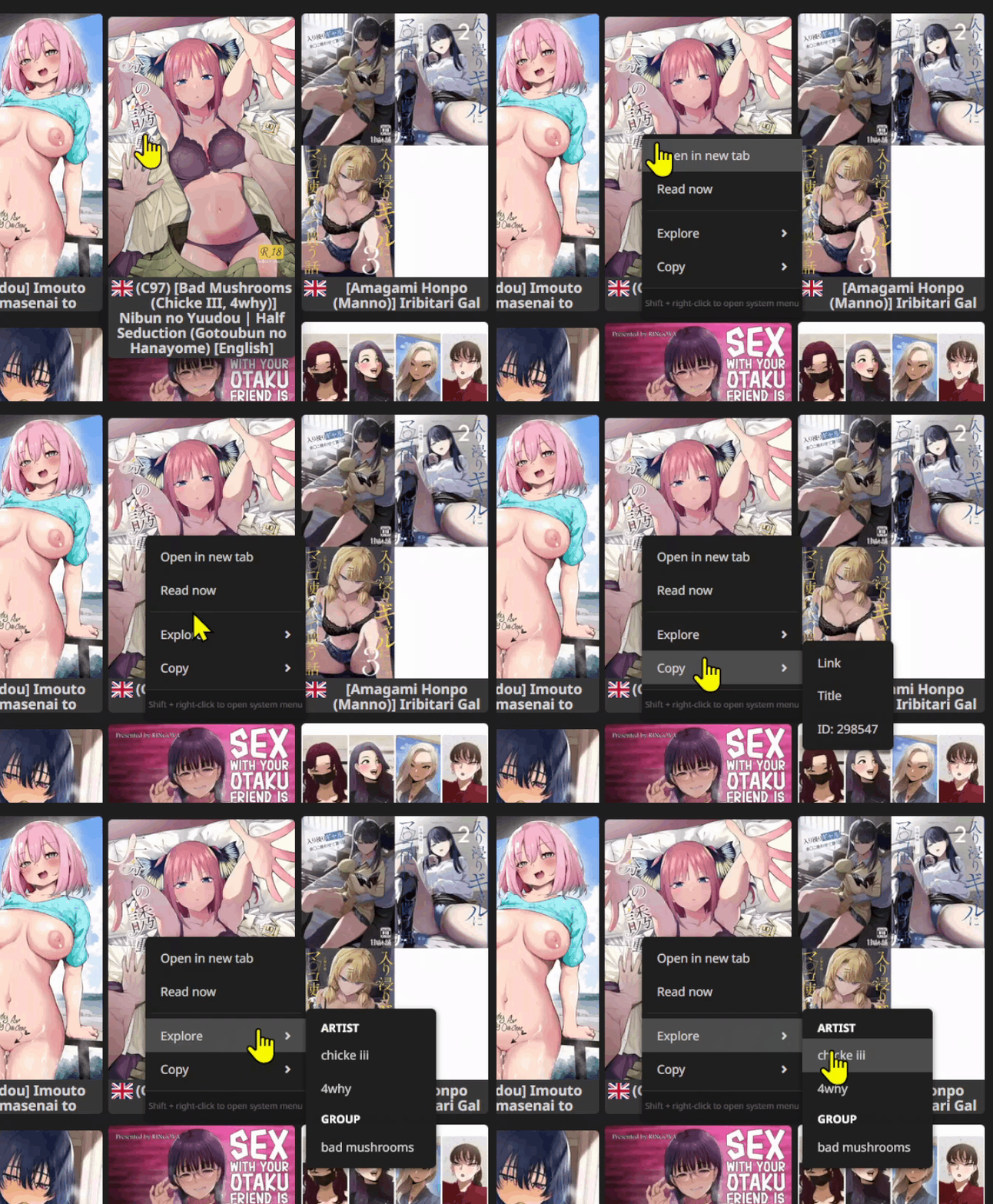
Right-click any gallery card to access a custom context menu with useful shortcuts.
Available actions include:
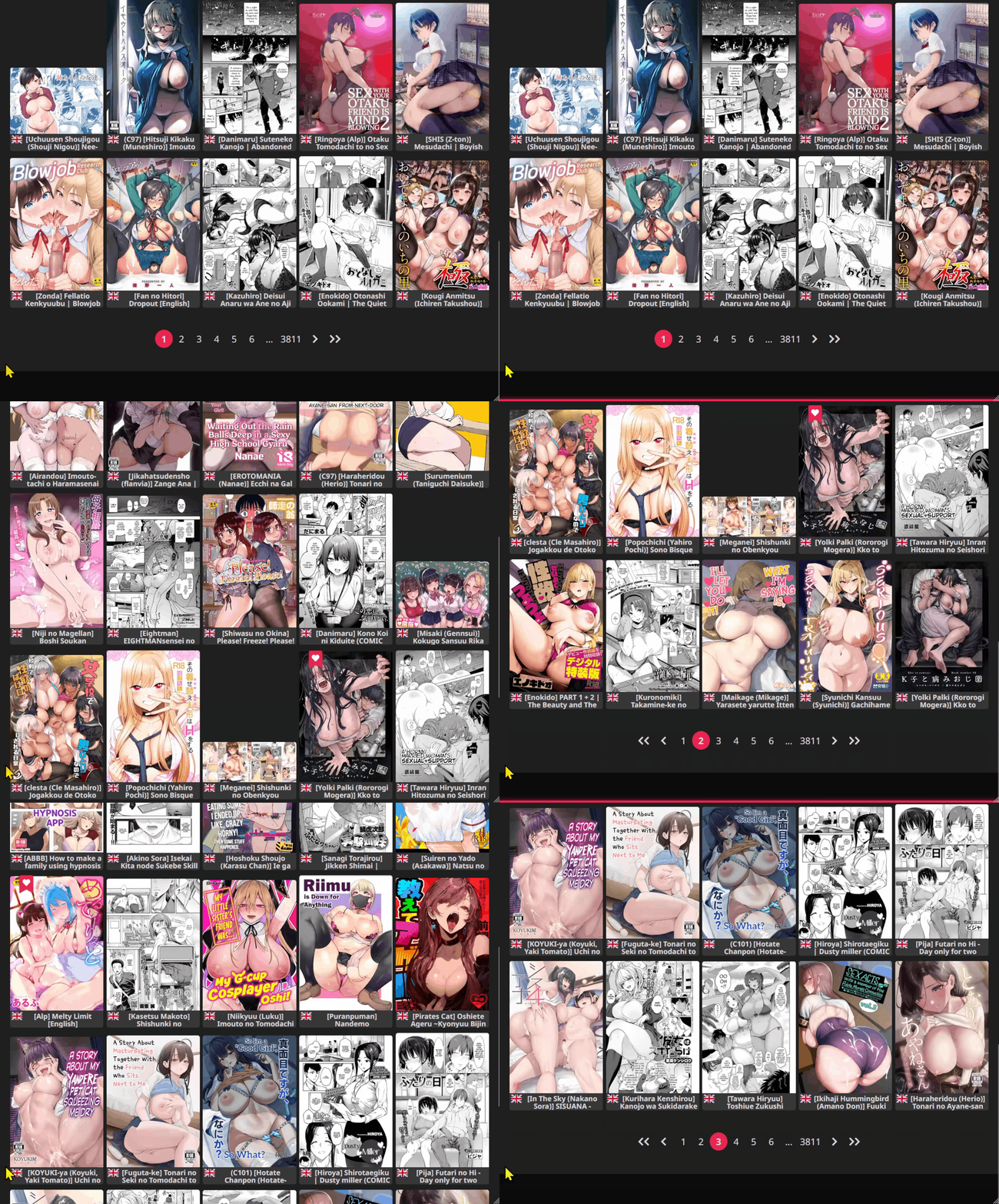
When you reach the bottom of a page, simply continue scrolling to navigate automatically to the next page.
No need to click pagination buttons.
On touch devices, you can also use a swipe gesture to continue browsing.
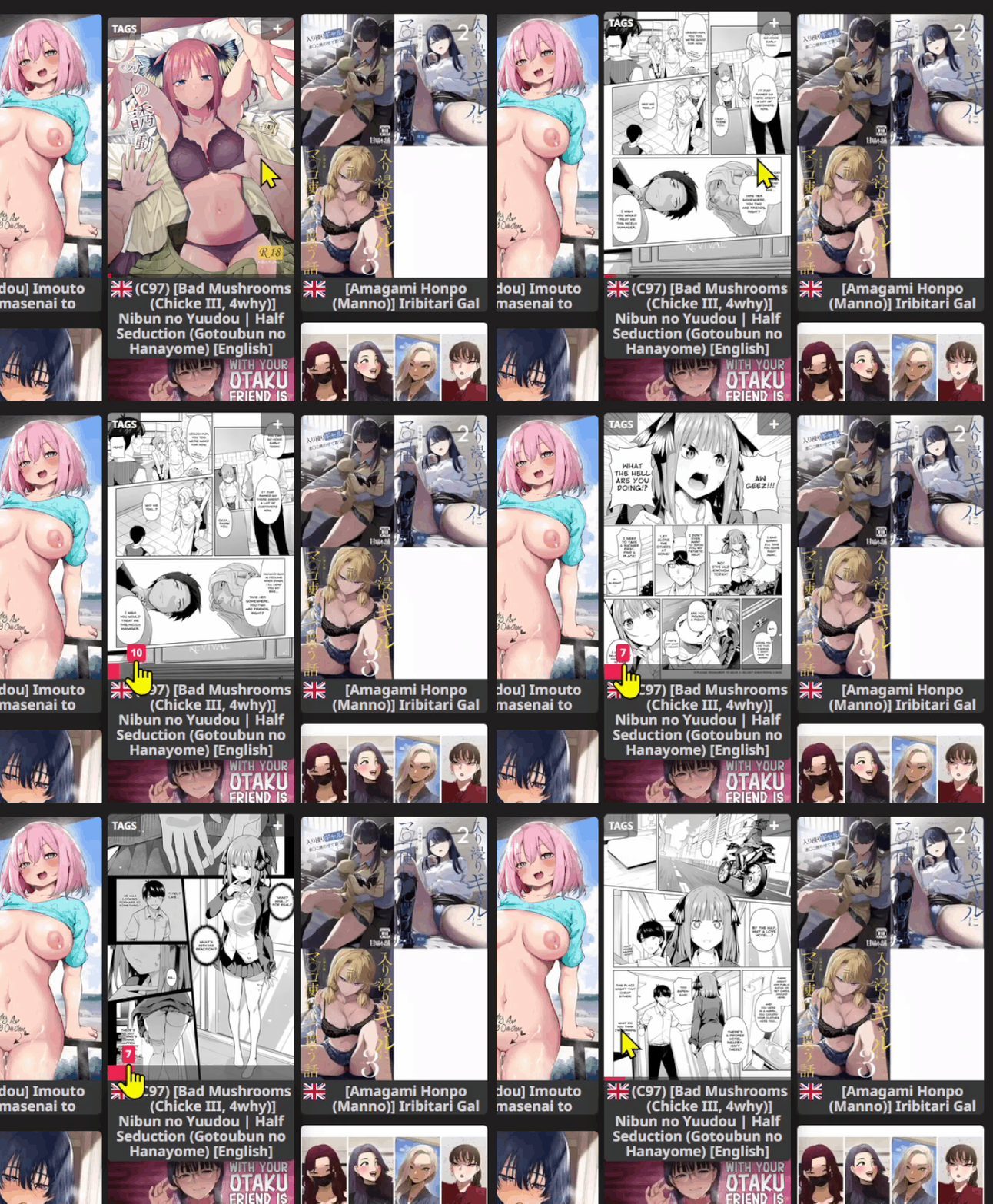
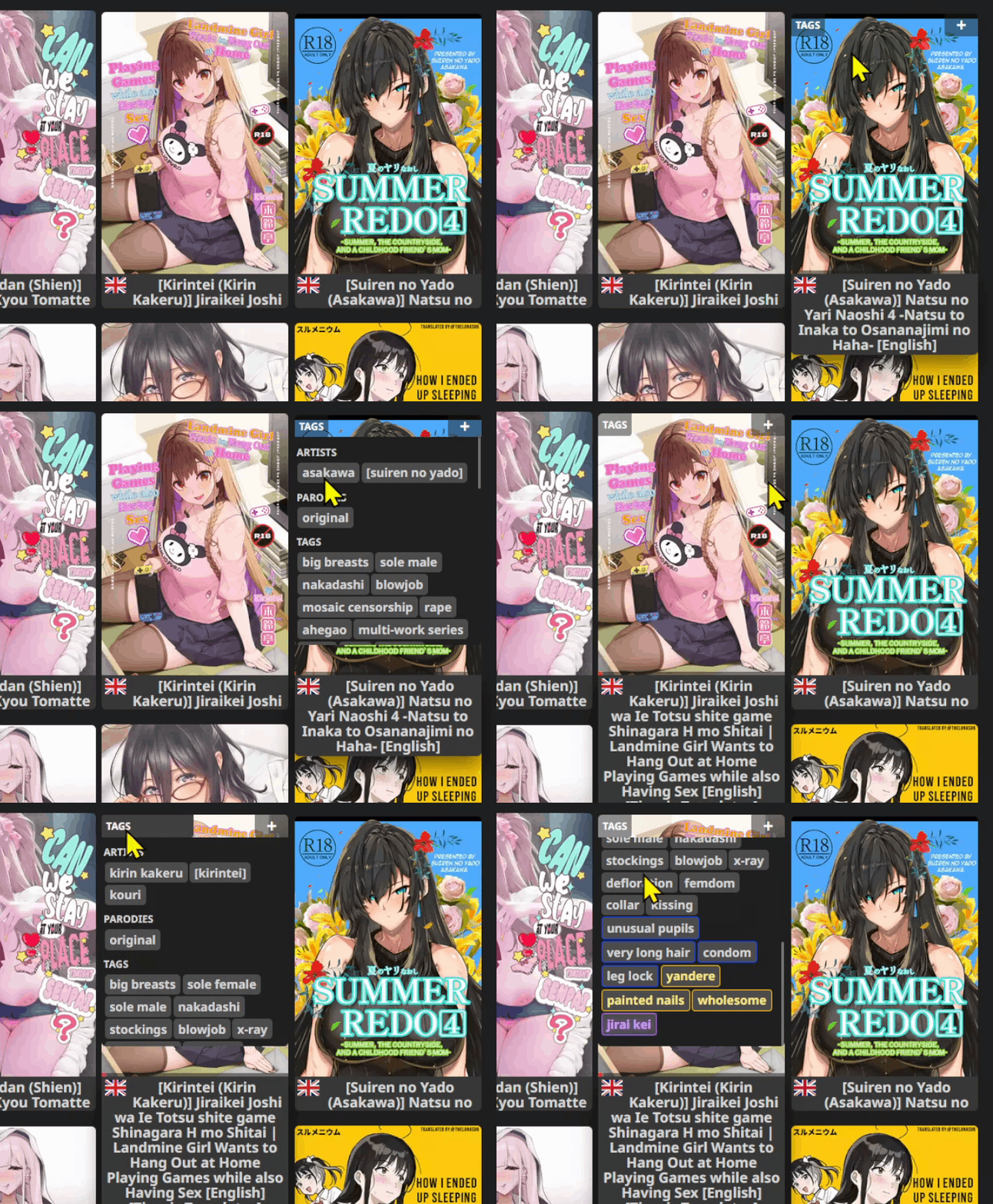
Explore a gallery's pages directly inside its thumbnail card.
Quickly preview its contents while staying on the current browsing page, making it easier to decide what to open next.
Display gallery tags directly on thumbnail cards.
Quickly check a gallery's tags without opening its page, making browsing and discovery more convenient.
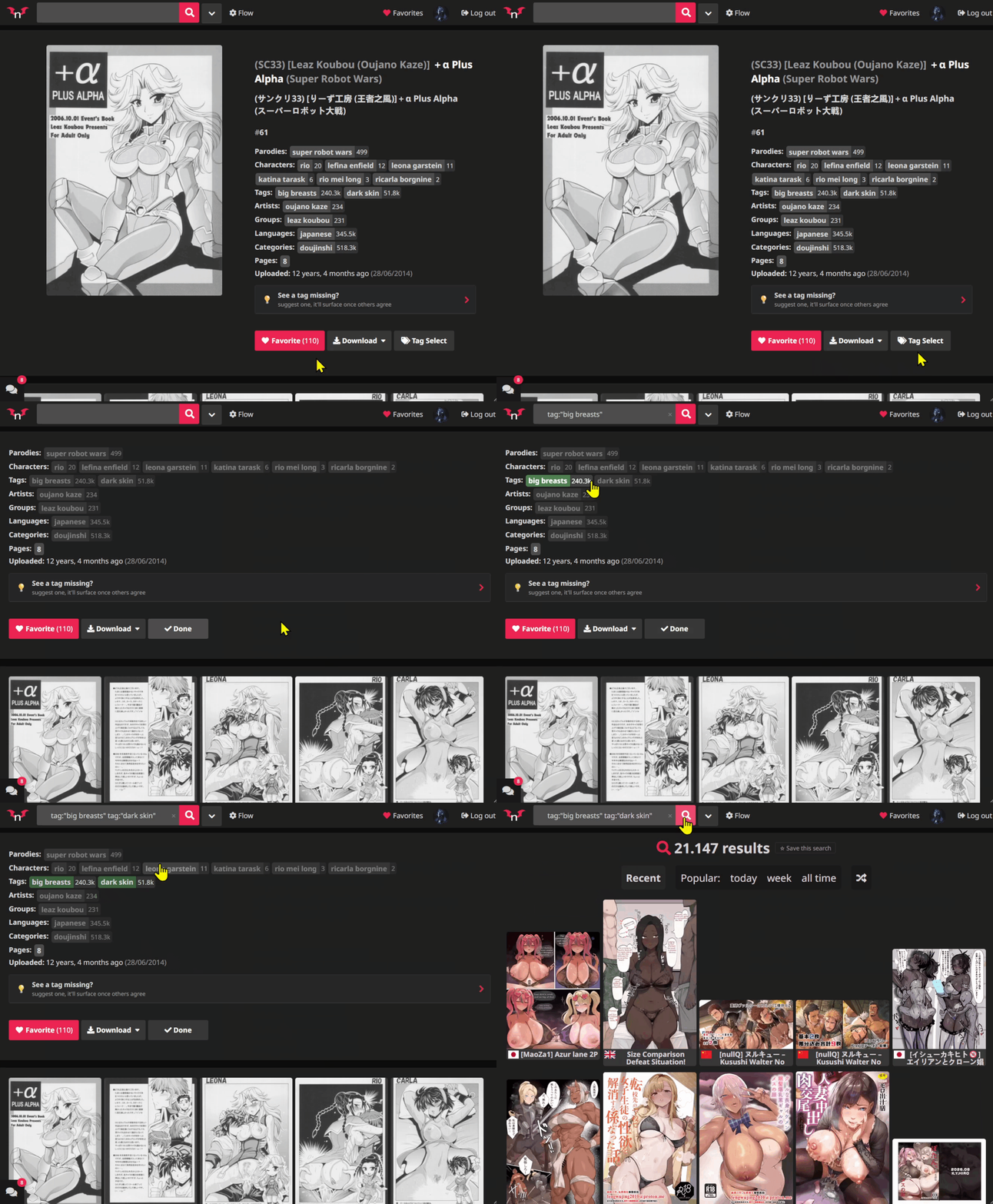
Select tags directly from a gallery's page to make building searches faster and easier.
Instead of manually entering each tag, use the tags already available on the page to help create your next search.
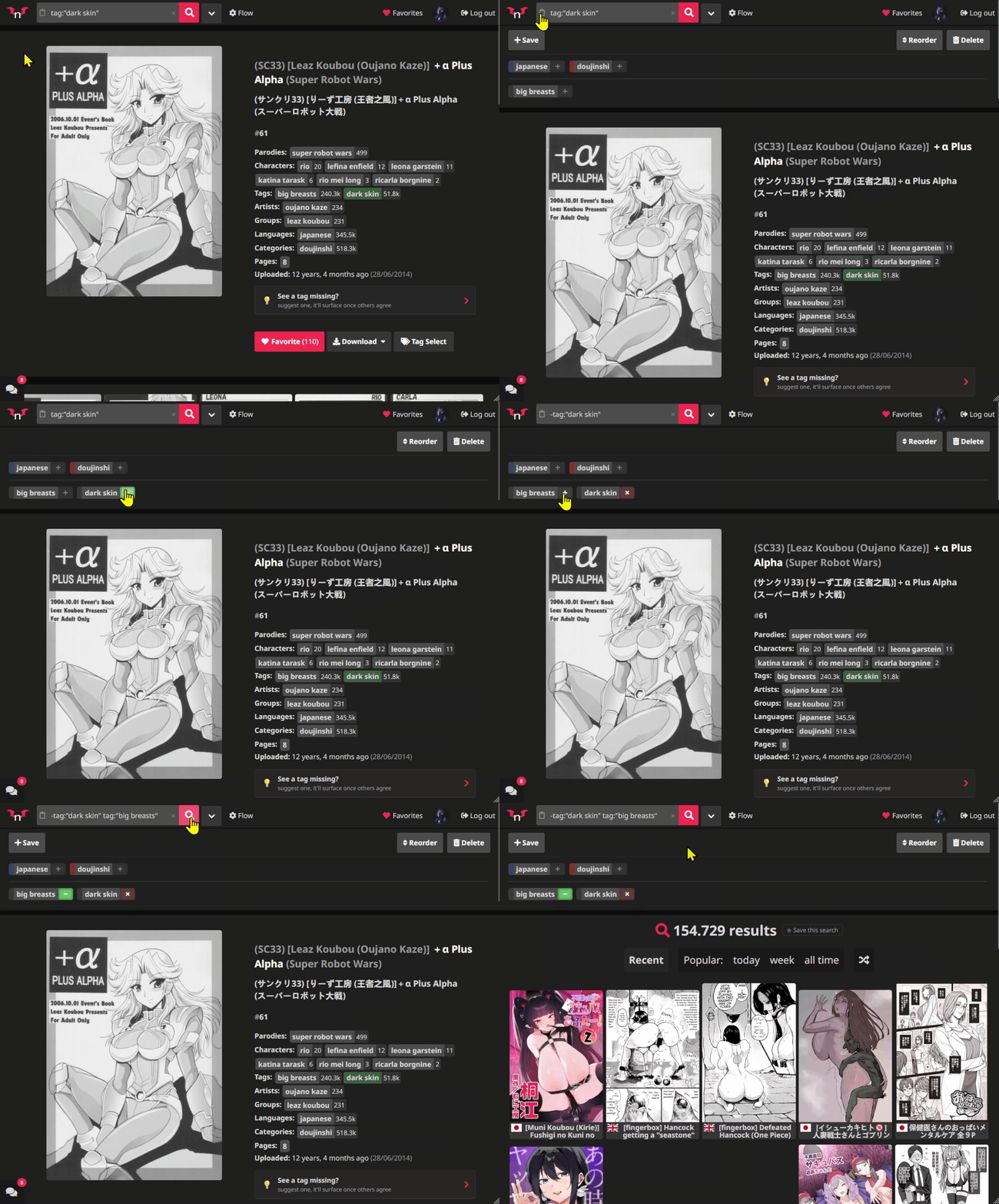
Save searches you frequently use and access them through convenient pills displayed just below the search bar.
Keep your searches organized and quickly return to them whenever you want.
Reading Queue Popup Navigation: Navigate between pages inside the Reading Queue popup using your mouse wheel or touch gestures.
Improved Reader Navigation: Turn pages by clicking outside the image, instead of having to click directly on the image itself.
Fullscreen Reader Navigation: In Flow's fullscreen reader mode, use your mouse wheel to advance through pages.
Flow includes a dedicated settings panel where you can enable or disable available features to match your browsing preferences.
Explore the settings and customize your experience.
| Key | Action |
|---|---|
Q |
Add/Remove the hovered gallery from the Queue |
/ |
Instantly focus the Search Bar |
T |
Toggle Fullscreen (in Reader) |
Arrow Keys |
Navigate card pages (Left / Right) |
