Imaglr - Widescreen Improvements

Makes the main post container on Imaglr full width, optionally displaying multiple posts per row. Adjust post size and Home page display style.

Чтобы установить этот скрипт, вы сначала должны установить расширение браузера, например Tampermonkey, Greasemonkey или Violentmonkey.

Для установки этого скрипта вам необходимо установить расширение, такое как Tampermonkey.

Чтобы установить этот скрипт, вы сначала должны установить расширение браузера, например Tampermonkey или Violentmonkey.

Чтобы установить этот скрипт, вы сначала должны установить расширение браузера, например Tampermonkey или Userscripts.

Чтобы установить этот скрипт, сначала вы должны установить расширение браузера, например Tampermonkey.

Чтобы установить этот скрипт, вы должны установить расширение — менеджер скриптов.

(у меня уже есть менеджер скриптов, дайте мне установить скрипт!)

Advertisement:

Чтобы установить этот стиль, сначала вы должны установить расширение браузера, например Stylus.

Чтобы установить этот стиль, сначала вы должны установить расширение браузера, например Stylus.

Чтобы установить этот стиль, сначала вы должны установить расширение браузера, например Stylus.

Чтобы установить этот стиль, сначала вы должны установить расширение — менеджер стилей.

Чтобы установить этот стиль, сначала вы должны установить расширение — менеджер стилей.

Чтобы установить этот стиль, сначала вы должны установить расширение — менеджер стилей.

(у меня уже есть менеджер стилей, дайте мне установить скрипт!)
Advertisement:

Автор
Hentiedup
Установок в день
0
Всего установок
5
Оценки
0 0 0
Версия
2.0.3
Создано
17.04.2026
Обновлено
02.06.2026
Размер
3,0 КБ
Лицензия
Unlicense
Работает на

Imaglr - Widescreen Improvements

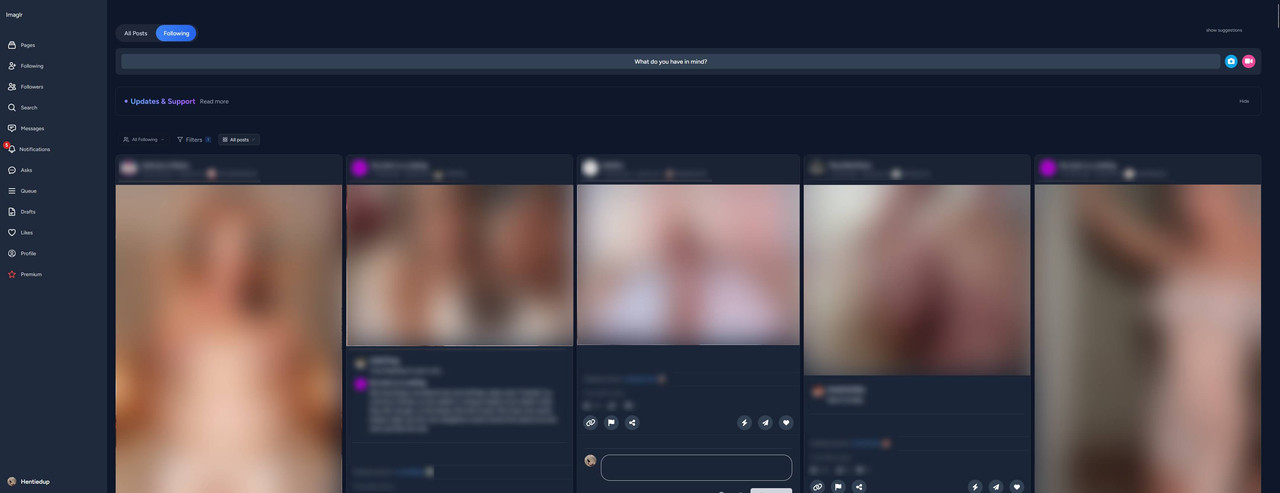
Makes the main post container on Imaglr full width, optionally displaying multiple posts per row. Also lets you adjust post size and home page display style. (Affects Home page and Profile pages)

Screenshot ^Example screenshot on an ultrawide monitor^

Also makes it so the little "Suggestions" box on the side, does not take up screen space when hidden. You can hide it from the small "hide" button on it, and show it again by clicking on "show suggestion" at the top of the page on the right. (see screenshot)


You need Stylus to be able to install userstyles.


Settings

Settings found in Stylus menu by clicking the cog icon next to the style.

  • Post Container Width: Sets the width of the main container that houses all the posts.
  • Single Post Width: Sets the desired post width.
    • Note that in Grid and Masonry view modes, posts will be enlarged to fill the remaining available space up to until there is enough space to fit a new post at desired width.
    • e.g. If there is 1200px of space, and you have Single Post Width set to 500px, it can't fit 3 in a row, so instead it will expand the 2 it can fit.
  • Home Page Mode: Lets you choose the view mode for the home page.