Add dual-page reading, translation and other enhancements to comic sites. E-Hentai (Associate nhentai, Quick favorite, Colorize tags, Floating tag list, etc.) | nhentai (Totally block comics, Auto page turning) | hitomi | hdoujin | SchaleNetwork | nude-moon | HentaiZap | IMHentai | HentaiEra | HentaiEnvy | Pawchive | kemono | nekohouse | MangaDex | welovemanga | kisslove(klz9)
As of







This is a userscript written by someone who was constantly annoyed that most comic sites don't support two-page display, and that large two-page spreads in comics get split into two pages*. To achieve a better reading experience, it adds a **two-page reading mode* and various enhancement features to mainstream comic sites.
In two-page mode, the script automatically detects spreads and puts each spread on its own page, and automatically inserts blank pages to keep the left/right page positions of the other images correct. You can also manually toggle page fill on/off via the sidebar button.
On supported sites, the script pops up a floating button in the bottom-right corner of the page to enter reading mode. On sites outside the supported list, you can use the Simple Reading Mode instead.
If the long introduction is too much and you just want to try it out, check out the feature demo of the reading mode.
If you like this reading mode and also want to use it to read local comics, try the ComicRead PWA. Just open the page and drag in your local comics for the exact same experience.
If you want to use the script's reading mode on your own site or project, see the relevant documentation.
If you find it helpful, please give it a ⭐ star.

If you install the userscript via AdGuard, please use the AdGuard version (jsDelivr link). Since scripts installed via AdGuard have no extension menu to click, the AdGuard version removes the simple reading mode and only runs on supported sites.
However, userscripts installed via AdGuard may conflict with other ad-blocking software. If a conflict occurs, you need to add a whitelist rule for the corresponding site in the other ad-blocking software. See this issue for details.
If your network environment cannot access npmmirror normally, please use the jsDelivr version (jsDelivr link).
The script has two kinds of configuration:
All configuration changes (except keyboard shortcuts) only take effect and are saved for the current site, so you can use different configurations on different sites.
Once you've settled on a site's commonly used configuration, you can lock the current configuration. Once locked, any changes you make won't be saved, so you don't have to revert temporary tweaks afterwards.
| Action | Shortcut |
|---|---|
| Turn page | Wheel Space wasd Arrow keys ,. PageUp/PageDown |
| Enter zoom mode | Double-click Alt + Wheel |
| Jump to start/end of comic | Home / End |
| Toggle page fill | / m z Middle-click |
| Exit reading mode | Esc |
| Enter reading mode | v |
You can modify these in the left sidebar settings after entering reading mode.
TL;DR: if a large two-page spread isn't merged correctly, just toggle page fill on/off.
This feature inserts or removes blank pages in the image flow to adjust the left/right page positions of images in two-page mode.
If you read comics in two-page mode without any sense of wrongness and don't care about correct left/right page positions, it's totally fine to skip the details here. In fact, learning about it might make you notice the awkwardness and feel uneasy reading a few comics where no amount of adjusting ever seems right.
But if you're after an experience close to flipping through a physical book, and you're not the OCD type, it's still highly recommended to read How to tell if the left/right page positions are correct?.
For webtoons, the script provides a scroll mode. In scroll mode you can adjust image zoom via Alt + Wheel.
The script automatically detects whether the current comic is a webtoon based on the image aspect ratio and enables scroll mode automatically. But if a scanlation group has split the webtoon into too many small pieces, you'll have to switch manually.
In scroll mode, you can use the Turn page up/Turn page down shortcuts for scrolling similar to Space and PageUp/PageDown, just with a shorter scroll distance.
Keys natively used for scrolling (e.g. the ↑↓←→ arrow keys, Space, etc.) won't trigger shortcuts in scroll mode.
On devices other than phones, a lot of space on the left and right is wasted when reading webtoons. Abreast scroll mode tries to improve this by placing multiple columns of the comic side by side.
However, simply placing them side by side risks splitting text exactly at the edge. To solve this, the beginning of each column repeats part of the end of the previous column, so even if text gets split you can just continue to the next column. The exact ratio can be adjusted via the Column duplicate ratio setting. You can also adjust overall progress by dragging or the Up/Down arrow keys.
Enabled via the "Enter simple reading mode" menu item under the script in the userscript manager's menu.
Used for reading comics on sites other than the supported ones. Once enabled, it loads all images on the current page whose width and height are both greater than 500 pixels as the image source, and automatically triggers lazy-loading of images, so you don't need to manually scroll the page to load them.
If the site doesn't need pagination and can show all comic images on a single page in one continuous flow, you can just use the Simple Reading Mode directly.
If the site requires pagination, you can install:
Use other scripts to aggregate the multi-page images into a single image source. No manual operation is needed in between — the script will automatically trigger the pagination script to load all the way to the last page.
The "Remember the current site" feature is enabled by default: the next time you open the site, Simple Reading Mode is used automatically. It can be turned off via the quick button on the bottom-right floating button.
To prevent automatically entering reading mode on non-comic pages — such as the homepage or intro pages — the script records some characteristics of comic pages, and afterwards only auto-uses Simple Reading Mode when those characteristics match. So after a site redesign or switching to a different auto-pagination script, the characteristics may no longer be recognized and Simple Reading Mode won't be used automatically. In that case, just manually enable it once again.
manga-image-translator is a project that implements automatic translation with text embedding. It's open source, can be conveniently deployed locally via Docker, and there's also an out-of-the-box online demo site, Cotrans, for trial.
To make reading raw comics easier, the script implements one-click translation by calling its interface, supporting both locally deployed versions and Cotrans. After selecting a translation service in the settings, you can use the translation button in the sidebar to toggle translation of the currently displayed page.
However! Cotrans is maintained by its maintainer out of love at their own expense. When many people use it simultaneously, you have to wait in a queue, and uploading a new image after the queue reaches its limit will error out — you'll need to try again later. So please mind your usage.
For this reason, using a locally deployed instance is highly recommended — it doesn't consume server resources and requires no queuing. Batch translation toggles such as translate all images are only available when using a local instance. See my notes for deployment instructions.
The script's default local server URL is http://127.0.0.1:5003. If you open this link and don't see the manga-image-translator page, you need to enter the correct URL in the Custom server URL setting; otherwise the Translation service menu will always be empty.
Cotrans also has its own userscript — Cotrans comic/image translator — supporting Pixiv, Twitter, Misskey, and Calckey. Those who need it are welcome to install it.
If you need to translate local comics, you can use the ComicRead PWA.
Enabling this feature changes how images are loaded, in order to obtain the pixel data needed for related features. Disabled by default; enable manually.
The trade-off is that images can't be shown progressively while loading — you have to wait until the whole image is loaded before it's displayed.
If you frequently use the Translation feature, it's recommended to enable this too, to avoid re-downloading images when translating.
Recognizes and sets the background color of image pages. Since it's designed for comics with page margins, it easily misjudges color illustrations and CG without margins.
Recognizes whether an image is a left page or a right page, and adjusts page fill accordingly.
Uses web-realesrgan to upscale images directly in the browser.
The first time you enable it, a 2MB model file is downloaded. Afterwards it's cached in the userscript manager's storage and shared across different sites, so it won't be downloaded again.
On some sites you can choose which content to load.

You can click to toggle selection, or long-press and drag to make a range selection.
The default shortcut is Shift + v. After pressing it you enter multi-select mode; once you've made your selection, press the "multi-select mode" or "enter reading mode" shortcut again to confirm.
You can also enter multi-select mode and confirm via the floating button's menu.
Sites supporting multi-select are marked with superscripts in the Supported Sites list below: merged means multiple works can be merged together, and select pages means specific pages can be selected to load.
Besides the reading mode, some sites also have extra enhancement features. Click the links below to view details.
漫画柜(manhuagui) ·
动漫屋(dm5) ·
mangabz ·
komiic ·
無限動漫
绅士漫画(wnacg) ·
禁漫天堂 ·
NoyAcg ·
熱辣漫畫 ·
hanime1
hitomi ·
hdoujin ·
SchaleNetwork ·
nude-moon ·
HentaiZap ·
IMHentai ·
HentaiEra ·
HentaiEnvy
MangaDex ·
welovemanga ·
kisslove(klz9)
Pawchive merged ·
kemono merged ·
nekohouse
Pixiv merged ·
微博 ·
明日方舟泰拉记事社 ·
Postimages ·
ニコニコ漫画 ·
最前線 ·
芸能ヌード
Although probably not many people will use it, the script also supports the mobile version.
In addition to the bottom-right floating button, moving the mouse to the top of the first post of a thread also reveals a newly added "Comic reading" button.

This feature lets you quickly return to where you left off reading a thread. Once enabled, a TAG appears after each thread that jumps to your last reading position; clicking it jumps to your last reading progress (which includes both the page number and the post/floor number). The number after it is the number of new replies since your last visit.

The quick navigation in the top navigation bar lets you jump between boards conveniently, but by default its board menu only appears on hover, and clicking jumps to the forum homepage — which is inconvenient on tablets. Hence this feature. It's simple: it disables the click-to-jump of quick navigation, keeping only the hover-to-show-menu behavior.
Quick navigation jumping is convenient, but having to scroll to the top of the page each time is a bit annoying. Enabling this feature pins the top navigation bar so it stays at the top of the page no matter how you scroll.
There's a "New window" option at the top of the board to choose where threads open by default, but even when it's checked, clicking the page numbers after a thread still opens the page in the current tab. Enabling this feature fills that gap.
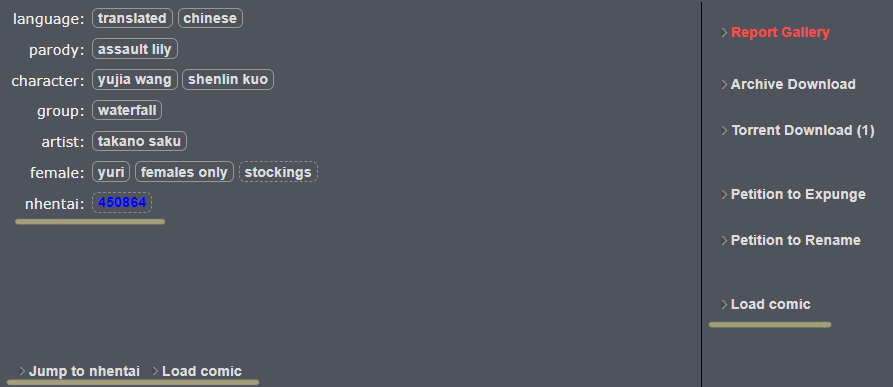
In addition to the floating button, a "Load comic" button is also added to the right sidebar, with the same function as the floating button.
E-Hentai's image links expire after a while, so it's recommended to enable the "Always load all images" setting to load all images before they expire.
If you frequently download and translate, it's also recommended to enable the Image Recognition feature, which downloads the image files directly during loading and avoids errors from expired image links later.
Since there are too many site enhancement features to fit on screen, toggles for some features are not shown on the floating button but placed in the settings panel after entering reading mode.
Holding Shift while clicking the "Load comic" button in the sidebar pops up an input box where you can enter a page range like 1, 3-5, 9- to load only the corresponding pages.
Multiple page ranges are separated by ,; a single number means a single page, 3-5 means pages 3 through 5, and 9- means from page 9 to the last page.
Associate comic sources from other sites and use them to load images, avoiding consumption of your quota, and perhaps (?) also loading images faster.
Results are shown as tags in the tag list:
Currently supports nhentai and hitomi.
nhentai's anti-crawler measures are adjusted from time to time, sometimes so strictly that it fails even when you've logged into nhentai. In that case you can only wait for the phase to pass.
Changes the original favorite popup to display on the current page, and auto-confirms after selecting a favorite folder.
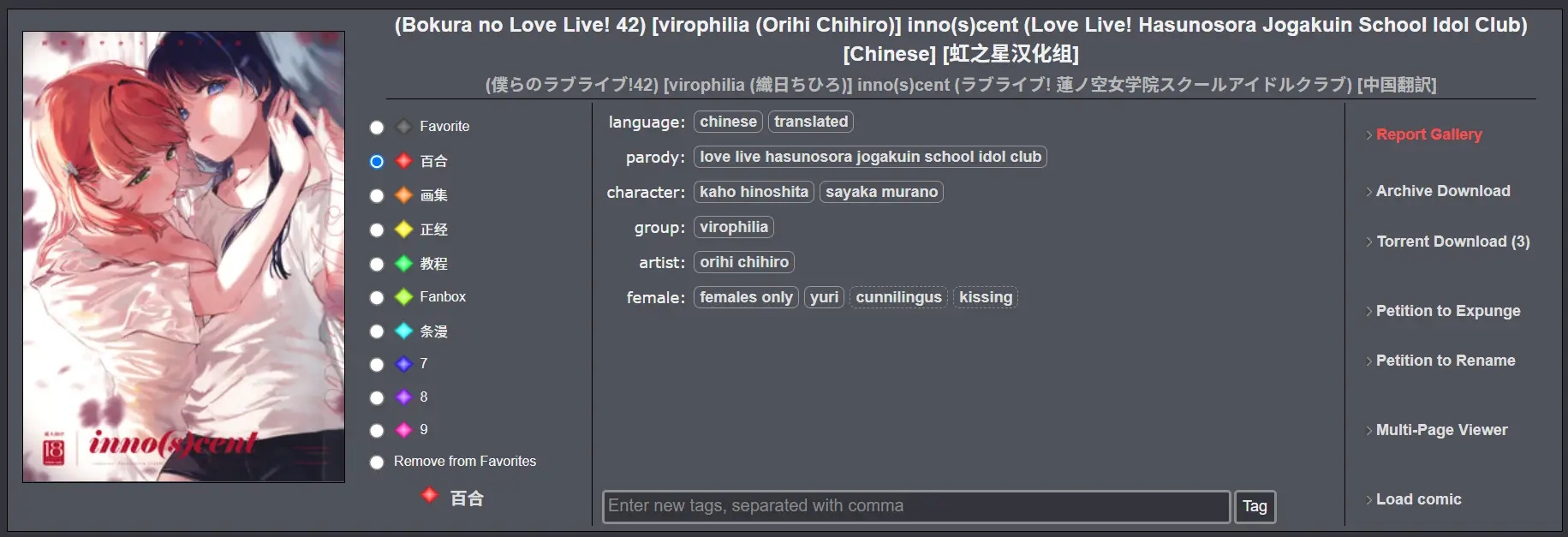
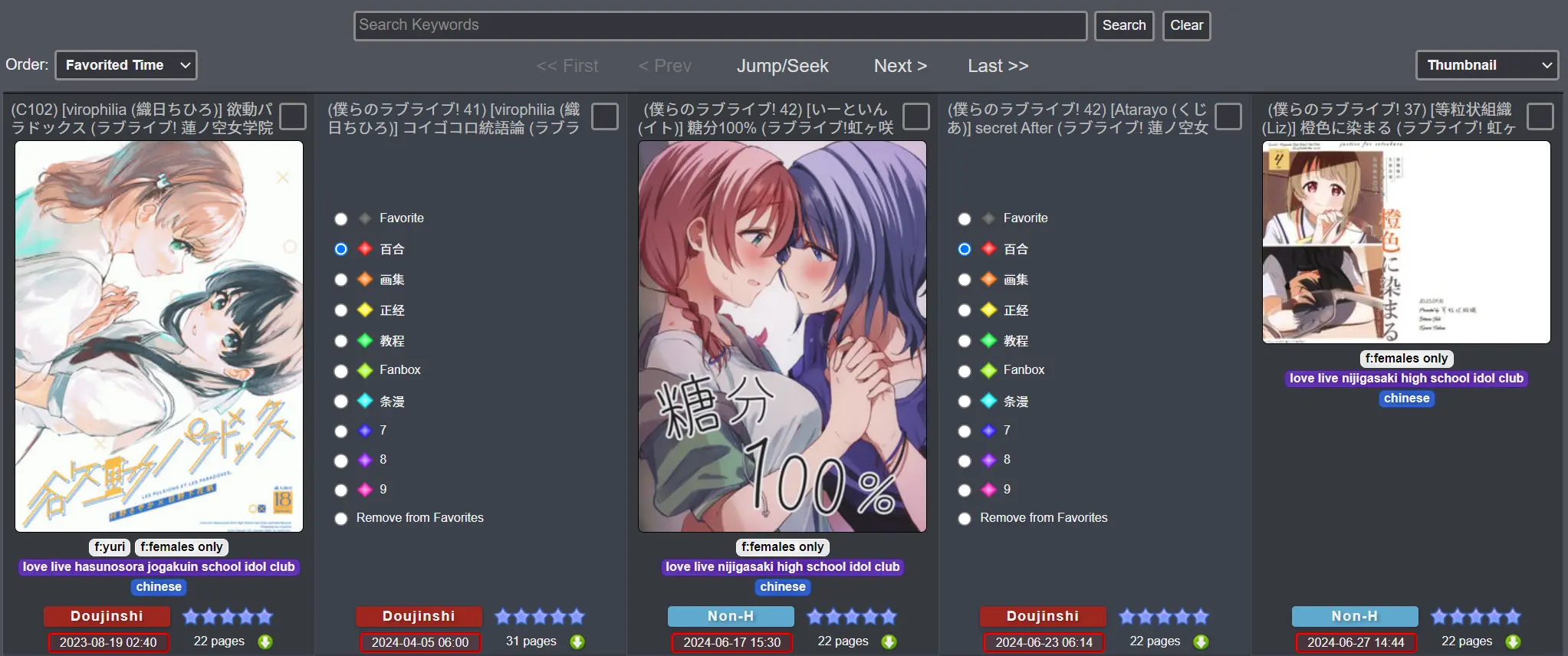
Because there's no room for an input box, and the favorite note feature is rarely used, favorite notes are not supported.
If needed, you can middle-click, or hold any modifier key such as
ctrl,shift, oraltwhile clicking, to bring up the original favorite popup.
Adds corresponding styles to tags on the detail page according to your My Tags settings. Disabled by default; enable manually.
Although several scripts already do this, they all directly overwrite the tag borders and font colors, making it impossible to tell the tag's status (see EHWiki). So this wheel was reinvented anyway, with improvements over the others: it doesn't overwrite the borders of weak tags, and shows the original font color as an underline instead.
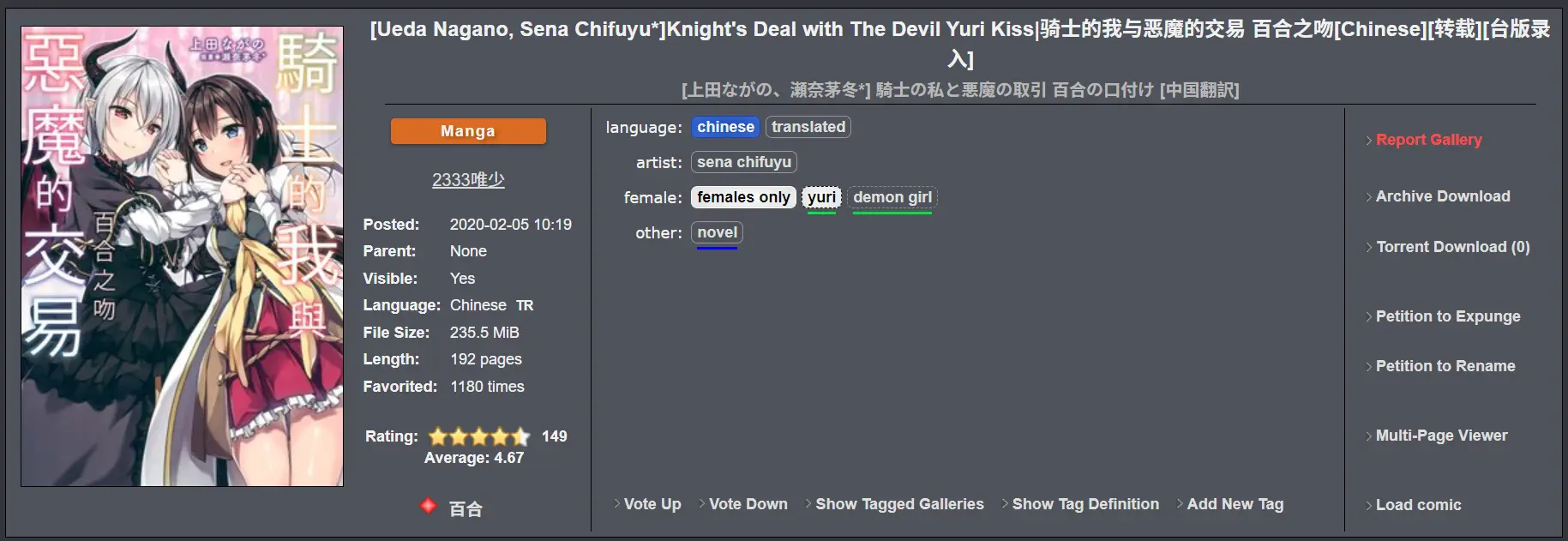
Tag color data is updated when
the feature is enabled,when entering My Tags, andafter modifying in My Tags.Additionally, tags shown on My Tags and list pages are sorted by color, namespace, weight, etc.
Since the E-Hentai tag translation helper - TagEditor can't work with this script, this feature was implemented from scratch. It lets the tag list be freely dragged and summoned by a shortcut. Disabled by default; enable manually.

Compared to the original script, it adds the shortcut q to summon the list in reading mode (modifiable in settings), can also display tag descriptions from EhSyringe, and uses Shift + mouse wheel to adjust opacity.
In floating mode, after you finish tagging the input box automatically loses focus so you can immediately close the window with a shortcut, and the input box auto-focuses when the mouse moves over it, saving a click.
Tags can be dragged directly into the input box. The detection area is generous — you don't have to drop exactly on the input box, just within the panel.
By default, only watched tags are shown in the thumbnail list. After enabling this feature, clicking the tag area expands the detailed tag list; you can also hover over the target and press the shortcut q to expand (sharing the same shortcut with the Floating Tag List feature).
Checks and flags the following cases:
bikini requires a swimsuit tagfemale only tag together with any non-female tagloli and flat chest tags (only suspected, because there may be multiple characters)catgirl usually comes with an animal ears tag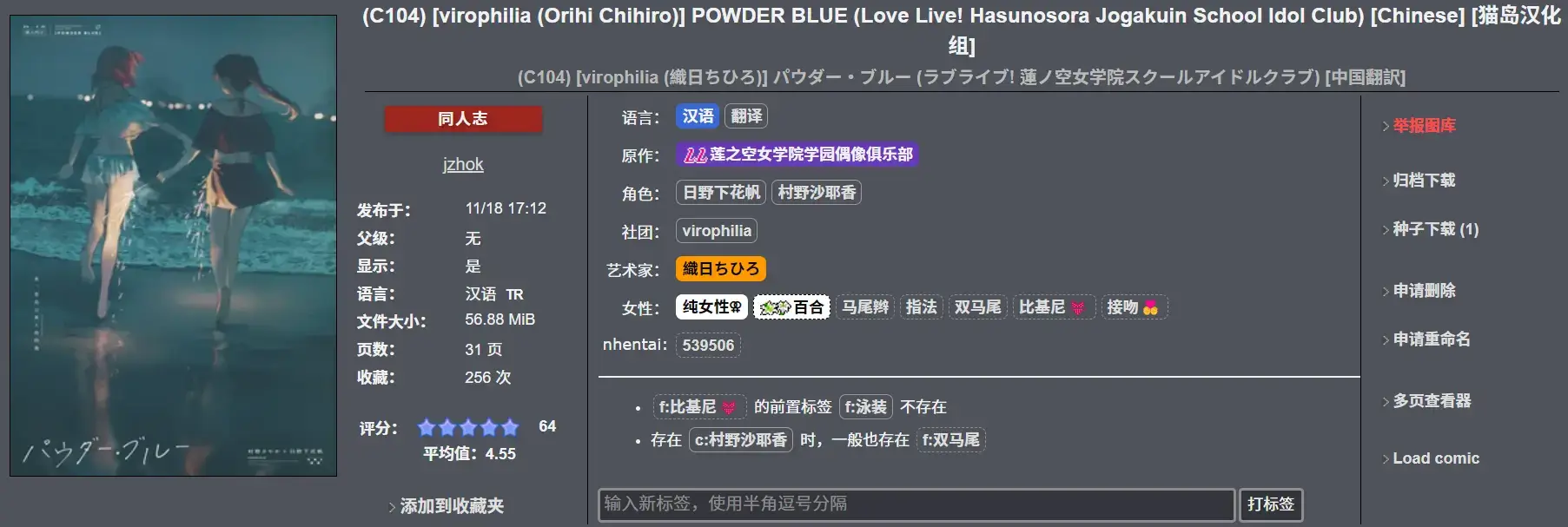
Existing weak tags are also flagged, making it easy to vote for them.
⚠️⚠️⚠️ Please always use your own judgment before voting — you are the first person responsible for the correctness of your tag votes. The script only provides simple reminders and saves you from manual tag entry.
For detailed rules see ehTagRules.ts. Feedback, additions, or PRs are welcome.
For easier cross-referencing, tags entered in the input box are automatically highlighted.
Simply detects ad pages and automatically excludes them. It only takes effect when the extraneous ads tag is present.
If false positives occur, please report them first, then you can turn off this feature in the bottom-right floating button menu and re-enable it after the script is updated and fixed.
Makes the rating shown on the list page no longer just decorative — you can click to modify it directly, just like on the detail page.
View tag definitions inline on the detail page.
Scroll left/Scroll right shortcuts from settings to turn pages on the list and detail pages.Up/Down arrow keys to vote on tags.ESC to deselect the current tag.Because the image recognition feature is currently useless — and even misjudges — for color illustrations and CG without page margins, this feature was created. In categories other than "Doujinshi", "Manga", and "Non-H", it automatically turns off image recognition and switches to single-page mode. Disabled by default; enable manually.
In addition to the floating button, a "Load comic" button is also added to the right sidebar, with the same function as the floating button.
nhentai only overlays a semi-transparent mask on blocked comics without hiding them, so blocked comics still occupy page space. After enabling this feature, blocked comics are completely hidden.
When the page scrolls to the bottom, the next page's content is automatically loaded at the bottom. A loading bar appears while loading, and when it stops, it means you've reached the last page.
If "Totally block comics" is also enabled, pages with no results are automatically skipped.
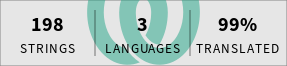
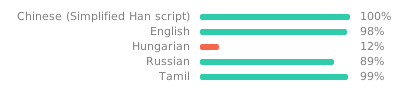
To make the script usable for users outside the Chinese-speaking community, multi-language translation is implemented with Weblate (thanks to Weblate for the free plan offered to open-source projects). More kind souls are welcome to contribute new language translations or help improve existing translations via Weblate.
Also many thanks to the following contributors who have already provided translations for the script:
Thanks to BrowserStack for the free plan offered to open-source projects.
This project is tested with BrowserStack.
